




Flutter Key详解
我们平时一定接触过很多的 Widget,比如 Container、Row、Column 等,它们在我们绘制界面的过程 中挥着重要的作用。但是不知道你有没有注意到,在几乎每个 Widget 的构造函数中,都有一个共同 的参数,它们通常在参数列表的第一个,那就是 Key。
在Flutter中,Key是不能重复使用的,所以Key一般用来做唯一标识。组件在更新的时候,其状态的保 存主要是通过判断组件的类型或者key值是否一致。因此,当各组件的类型不同的时候,类型已经足够 用来区分不同的组件了,此时我们可以不必使用key。但是如果同时存在多个同一类型的控件的时候, 此时类型已经无法作为区分的条件了,我们就需要使用到key。
没有 Key 会发生什么奇怪现象
如下面例: 定义了一个StatefulWidget的Box,点击Box的时候可以改变Box里面的数字,当我们重新 对Box排序的时候Flutter就无法识别到Box的变化了, 这是什么原因呢?
这段代码list.shuffle()打乱数组 重新排序 但是数字没有变化 为什么? 因为没有key
import 'package:flutter/material.dart';

import 'tools/pageViewKeepAlive.dart';

class SearchPage extends StatefulWidget {
  const SearchPage({super.key});

  @override
  State<SearchPage> createState() => _SearchPageState();
}

class _SearchPageState extends State<SearchPage> {
  List<Widget> list = [
    const Box(
      color: Colors.red,
    ),
    const Box(
      color: Colors.blue,
    ),
    const Box(
      color: Colors.green,
    ),
  ];

  @override
  Widget build(BuildContext context) {
    return Scaffold(
      appBar: AppBar(
        title: const Text('搜索'),
      ),
      floatingActionButton: FloatingActionButton(
        onPressed: (){
          setState(() {
            list.shuffle(); // 打乱数组
          });
        },
        child: const Icon(Icons.refresh),
      ),
      body: Center(
          child: Column(
        mainAxisAlignment: MainAxisAlignment.center,
        children: list,
      )),
    );
  }
}

class Box extends StatefulWidget {
  final Color color;
  const Box({super.key, required this.color});

  @override
  State<Box> createState() => _BoxState();
}

class _BoxState extends State<Box> {
  int _count = 0;
  @override
  Widget build(BuildContext context) {
    return Container(
        width: 100,
        height: 100,
        color: Colors.red,
        child: ElevatedButton(
          style: ButtonStyle(
              backgroundColor: MaterialStateProperty.all(widget.color)),
          onPressed: () {
            setState(() {
              _count++;
            });
          },
          child: Text(
            '$_count',
            style: const TextStyle(fontSize: 20),
          ),
        ));
  }
}
Flutter key:LocalKey、GlobalKey、UniqueKey
Flutter key子类包含LocalKey 和GlobalKey 。
- 局部键(LocalKey):ValueKey、ObjectKey、UniqueKey
- 全局键(GlobalKey): GlobalKey、GlobalObjectKey
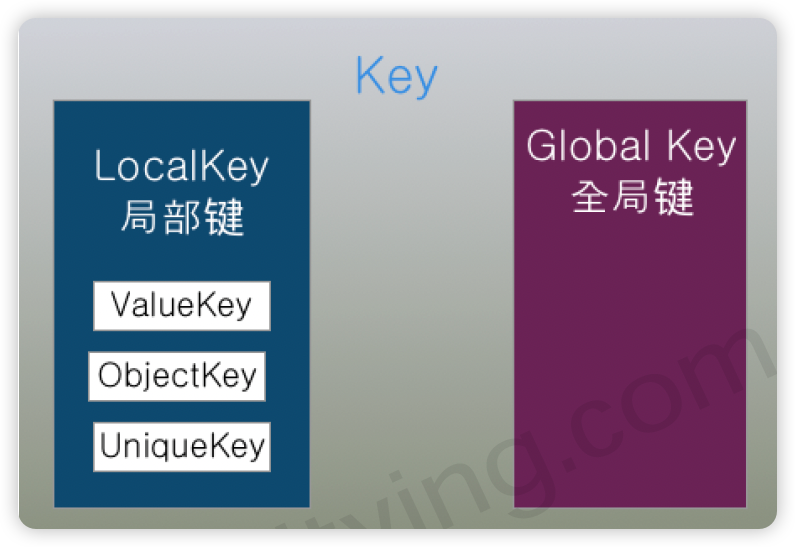
ValueKey (值key)把一个值作为key ,UniqueKey(唯一key)程序生成唯一的Key,当我们不知道 如何指定ValueKey的时候就可以使用UniqueKey,ObjectKey(对象key)把一个对象实例作为key。
GlobalKey(全局key),GlobalObjectKey(全局Objec key,和ObjectKey有点类似)
LocalKey改造上面的例子
import 'package:flutter/material.dart';

import 'tools/pageViewKeepAlive.dart';

class SearchPage extends StatefulWidget {
  const SearchPage({super.key});

  @override
  State<SearchPage> createState() => _SearchPageState();
}

class _SearchPageState extends State<SearchPage> {
  List<Widget> list = [
    const Box(
      key: ValueKey('1'),
      color: Colors.red,
    ),
    const Box(
      key: ValueKey('2'),
      color: Colors.blue,
    ),
    const Box(
      key: ValueKey('3'),
      color: Colors.green,
    ),
  ];

  @override
  Widget build(BuildContext context) {
    return Scaffold(
      appBar: AppBar(
        title: const Text('搜索'),
      ),
      floatingActionButton: FloatingActionButton(
        onPressed: (){
          setState(() {
            list.shuffle(); // 打乱数组
          });
        },
        child: const Icon(Icons.refresh),
      ),
      body: Center(
          child: Column(
            mainAxisAlignment: MainAxisAlignment.center,
            children: list,
          )
      ),
    );
  }
}

class Box extends StatefulWidget {
  final Color color;
  const Box({Key? key, required this.color}) : super(key: key);

  @override
  State<Box> createState() => _BoxState();
}

class _BoxState extends State<Box> {
  int _count = 0;
  @override
  Widget build(BuildContext context) {
    return Container(
        width: 100,
        height: 100,
        color: Colors.red,
        child: ElevatedButton(
          style: ButtonStyle(
              backgroundColor: MaterialStateProperty.all(widget.color)),
          onPressed: () {
            setState(() {
              _count++;
            });
          },
          child: Text(
            '$_count',
            style: const TextStyle(fontSize: 20),
          ),
        ));
  }
}
GlobalKey的使用
GlobalKey是一个全局key,它可以跨组件获取State,它的使用方法如下:
import 'package:flutter/material.dart';

import 'tools/pageViewKeepAlive.dart';

class SearchPage extends StatefulWidget {
  const SearchPage({super.key});

  @override
  State<SearchPage> createState() => _SearchPageState();
}

class _SearchPageState extends State<SearchPage> {
  List<Widget> list = [];
  final GlobalKey _globalKey1 = GlobalKey();
  final GlobalKey _globalKey2 = GlobalKey();
  final GlobalKey _globalKey3 = GlobalKey();


  @override
  void initState() {
    super.initState();
    list = [
      Box(
        key: _globalKey1,
        color: Colors.red,
      ),
      Box(
        key: _globalKey2,
        color: Colors.blue,
      ),
      Box(
        key: _globalKey3,
        color: Colors.green,
      ),
    ];
  }

  @override
  Widget build(BuildContext context) {
    return Scaffold(
      appBar: AppBar(
        title: const Text('搜索'),
      ),
      floatingActionButton: FloatingActionButton(
        onPressed: (){
          setState(() {
            list.shuffle(); // 打乱数组
          });
        },
        child: const Icon(Icons.refresh),
      ),
      body: Center(
          child: MediaQuery.of(context).orientation == Orientation.portrait
              ? Column(
                  mainAxisAlignment: MainAxisAlignment.center,
                  children: list,
                )
              : Row(
                  mainAxisAlignment: MainAxisAlignment.center,
                  children: list,
                )
      ),
    );
  }
}

class Box extends StatefulWidget {
  final Color color;
  const Box({Key? key, required this.color}) : super(key: key);

  @override
  State<Box> createState() => _BoxState();
}

class _BoxState extends State<Box> {
  int _count = 0;
  @override
  Widget build(BuildContext context) {
    return Container(
        width: 100,
        height: 100,
        color: Colors.red,
        child: ElevatedButton(
          style: ButtonStyle(
              backgroundColor: MaterialStateProperty.all(widget.color)),
          onPressed: () {
            setState(() {
              _count++;
            });
          },
          child: Text(
            '$_count',
            style: const TextStyle(fontSize: 20),
          ),
        ));
  }
}
GlobalKey 获取子组件
globalKey.currentState 可以获取子组件的状态,执行子组件的方法,globalKey.currentWidget可以获 取子组件的属性,_globalKey.currentContext!.findRenderObject()可以获取渲染的属性。
import 'package:flutter/material.dart';

import 'tools/pageViewKeepAlive.dart';

class SearchPage extends StatefulWidget {
  const SearchPage({super.key});

  @override
  State<SearchPage> createState() => _SearchPageState();
}

class _SearchPageState extends State<SearchPage> {
  // List<Widget> list = [];
  final GlobalKey _globalKey = GlobalKey();
  // final GlobalKey _globalKey2 = GlobalKey();
  // final GlobalKey _globalKey3 = GlobalKey();


  @override
  void initState() {
    super.initState();
    // list = [
    //   Box(
    //     key: _globalKey1,
    //     color: Colors.red,
    //   ),
    //   Box(
    //     key: _globalKey2,
    //     color: Colors.blue,
    //   ),
    //   Box(
    //     key: _globalKey3,
    //     color: Colors.green,
    //   ),
    // ];
  }

  @override
  Widget build(BuildContext context) {
    return Scaffold(
      appBar: AppBar(
        title: const Text('搜索'),

      ),
      floatingActionButton: FloatingActionButton(
        onPressed: () {
          // 获取子组件的属性
          var boxState = _globalKey.currentState as _BoxState;
          setState(() {
            boxState._count++;
            // 调用子组件的方法
          });
          boxState.run();
          // 获取子组件的Widget
          var box = _globalKey.currentWidget as Box;
          print(box.color);

          // 获取子组件的渲染对象
          var boxRender = _globalKey.currentContext!.findRenderObject() as RenderBox;
          print(boxRender);


        },
        child: const Icon(Icons.add),
      ),
      body:  Center(
          child: Box(
            key: _globalKey,
            color: Colors.red,
          ),
      ),
    );
  }
}

class Box extends StatefulWidget {
  final Color color;
  const Box({Key? key, required this.color}) : super(key: key);

  @override
  State<Box> createState() => _BoxState();
}

class _BoxState extends State<Box> {
  int _count = 0;
  void run(){
    print('run');
  }
  @override
  Widget build(BuildContext context) {
    return Container(
        width: 100,
        height: 100,
        color: Colors.red,
        child: ElevatedButton(
          style: ButtonStyle(
              backgroundColor: MaterialStateProperty.all(widget.color)),
          onPressed: () {
            setState(() {
              _count++;
            });
          },
          child: Text(
            '$_count',
            style: const TextStyle(fontSize: 20),
          ),
        ));
  }
}
Widget Tree、Element Tree 和 RenderObject Tree
Flutter应用是由是Widget Tree、Element Tree 和 RenderObject Tree组成
Widget可以理解成一个类,Element可以理解成Widget的实例,Widget与Element的关系可以是一对 多,一份配置可以创造多个Element实例
| 属性 | 描述 |
|---|---|
| Widget | Widget就是一个类, 是Element 的配置信息。与Element的关系可以是一对多,一份配置可以创造多个Element实例 |
| Element | Widget 的实例化,内部持有Widget和RenderObject。 |
| RenderObject | 负责渲染绘制。 |
默认情况下面,当Flutter同一个 Widget的大小,顺序变化的时候,FLutter不会改变Widget的state。