




Flutter Paddiing组件
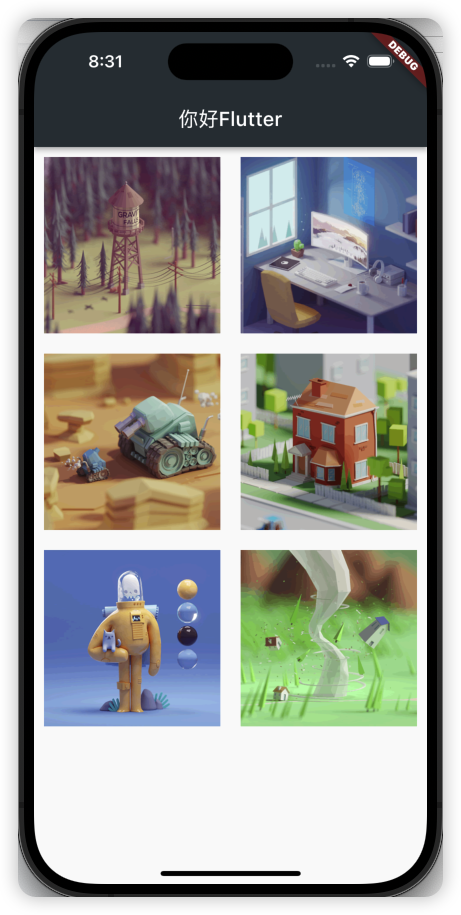
在html中常见的布局标签都有padding属性,但是Flutter中很多Widget是没有padding属性。这个时候我们可以用Padding组件处理容器与子元素之间的间距。
| 属性 | 说明 |
|---|---|
| padding | padding值, EdgeInsetss设置填充的值 |
| child | 子组件 |
import 'package:flutter/material.dart';
import 'listData.dart';

void main() {
  runApp(MaterialApp(
    home: Scaffold(
      appBar: AppBar(
        title: const Text('你好Flutter'),
        backgroundColor: Colors.blueGrey[900],
      ),
      body: const MyApp(),
    ),
  ));
}

class MyApp extends StatelessWidget {
  const MyApp({Key? key}) : super(key: key);

  @override
  Widget build(BuildContext context) {
    return GridView.count(
// padding: const EdgeInsets.all(10),
      crossAxisCount: 2,
      childAspectRatio: 1,
      children: [
        Padding(
          padding: const EdgeInsets.all(10),
          child: Image.network('https://www.itying.com/images/flutter/1.png',
              fit: BoxFit.cover),
        ),
        Padding(
          padding: const EdgeInsets.all(10),
          child: Image.network('https://www.itying.com/images/flutter/2.png',
              fit: BoxFit.cover),
        ),
        Padding(
          padding: const EdgeInsets.all(10),
          child: Image.network('https://www.itying.com/images/flutter/3.png',
              fit: BoxFit.cover),
        ),
        Padding(
          padding: const EdgeInsets.all(10),
          child: Image.network('https://www.itying.com/images/flutter/4.png',
              fit: BoxFit.cover),
        ),
        Padding(
          padding: const EdgeInsets.all(10),
          child: Image.network('https://www.itying.com/images/flutter/5.png',
              fit: BoxFit.cover),
        ),
        Padding(
          padding: const EdgeInsets.all(10),
          child: Image.network('https://www.itying.com/images/flutter/6.png',
              fit: BoxFit.cover),
        ),
      ],
    );
    ;
  }
}
线性布局(Row和Column)
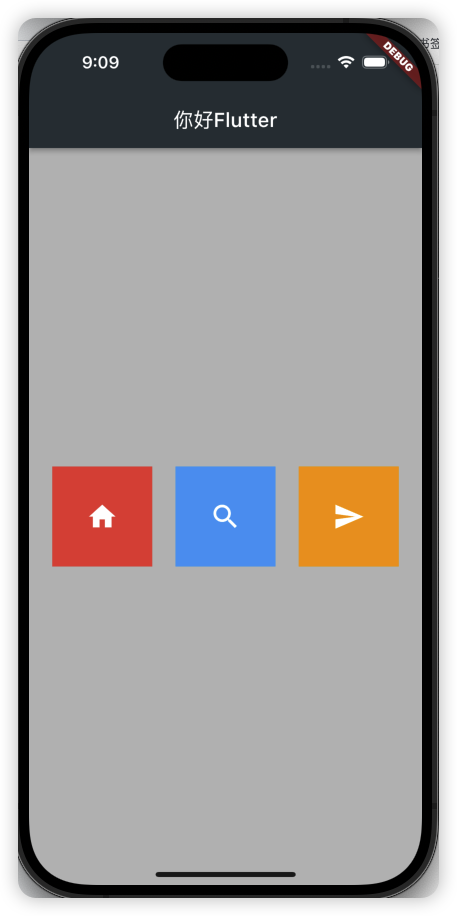
Row 水平布局组件
| 属性 | 说明 |
|---|---|
| mainAxisAlignment | 主轴的排序方式 |
| crossAxisAlignment | 次轴的排序方式 |
| children | 组件子元素 |
import 'package:flutter/material.dart';
import 'listData.dart';

void main() {
  runApp(MaterialApp(
    home: Scaffold(
      appBar: AppBar(
        title: const Text('你好Flutter'),
        backgroundColor: Colors.blueGrey[900],
      ),
      body: const MyApp(),
    ),
  ));
}

class MyApp extends StatelessWidget {
  const MyApp({Key? key}) : super(key: key);

  @override
  Widget build(BuildContext context) {
    return Container(
      height: double.infinity,
      width: double.infinity,
      color: Colors.black26,
      child: Row(
        crossAxisAlignment: CrossAxisAlignment.center,
        mainAxisAlignment: MainAxisAlignment.spaceEvenly,
        children: [
          IconContainer(Icons.home, color: Colors.red),
          IconContainer(Icons.search, color: Colors.blue),
          IconContainer(Icons.send, color: Colors.orange),
        ],
      ),
    );
  }
}

// ignore: must_be_immutable
class IconContainer extends StatelessWidget {
  Color color;
  double size;
  IconData icon;
  IconContainer(this.icon,
      {Key? key, this.color = Colors.red, this.size = 32.0})
      : super(key: key);
  @override
  Widget build(BuildContext context) {
    return Container(
      height: 100.0,
      width: 100.0,
      color: color,
      child: Center(child: Icon(icon, size: size, color: Colors.white)),
    );
  }
}
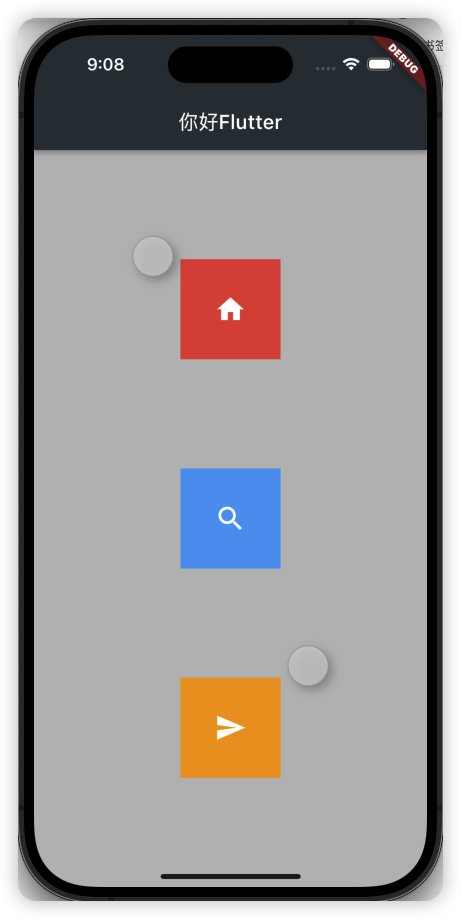
Column垂直布局组件
| 属性 | 说明 |
|---|---|
| mainAxisAlignment | 主轴的排序方式 |
| crossAxisAlignment | 次轴的排序方式 |
| children | 组件子元素 |
import 'package:flutter/material.dart';
import 'listData.dart';

void main() {
  runApp(MaterialApp(
    home: Scaffold(
      appBar: AppBar(
        title: const Text('你好Flutter'),
        backgroundColor: Colors.blueGrey[900],
      ),
      body: const MyApp(),
    ),
  ));
}

class MyApp extends StatelessWidget {
  const MyApp({Key? key}) : super(key: key);

  @override
  Widget build(BuildContext context) {
    return Container(
      height: double.infinity,
      width: double.infinity,
      color: Colors.black26,
      child: Column(
        crossAxisAlignment: CrossAxisAlignment.center,
        mainAxisAlignment: MainAxisAlignment.spaceEvenly,
        children: [
          IconContainer(Icons.home, color: Colors.red),
          IconContainer(Icons.search, color: Colors.blue),
          IconContainer(Icons.send, color: Colors.orange),
        ],
      ),
    );
  }
}

// ignore: must_be_immutable
class IconContainer extends StatelessWidget {
  Color color;
  double size;
  IconData icon;
  IconContainer(this.icon,
      {Key? key, this.color = Colors.red, this.size = 32.0})
      : super(key: key);
  @override
  Widget build(BuildContext context) {
    return Container(
      height: 100.0,
      width: 100.0,
      color: color,
      child: Center(child: Icon(icon, size: size, color: Colors.white)),
    );
  }
}
double.infinity 和double.maxFinite
double.infinity 和double.maxFinite可以让当前元素的width或者height达到父元素的尺寸
底层代码
static const double nan = 0.0 / 0.0;
static const double infinity = 1.0 / 0.0;
static const double negativeInfinity = -infinity;
static const double minPositive = 5e-324;
static const double maxFinite = 1.7976931348623157e+308;
如下可以让Container铺满整个屏幕
Widget build(BuildContext context) {
    return Container(
        height: double.infinity,
        width: double.infinity,
        color: Colors.black26,
        child: Column(
            crossAxisAlignment: CrossAxisAlignment.center,
            mainAxisAlignment: MainAxisAlignment.spaceEvenly,
            children: [
                IconContainer(Icons.home, color: Colors.red),
                IconContainer(Icons.search, color: Colors.blue),
                IconContainer(Icons.send, color: Colors.orange),
            ],
        ),
    );
}
如下可以让Container的宽度和高度等于父元素的宽度高度
class HomePage extends StatelessWidget {
    const HomePage({Key? key}) : super(key: key);

    @override
    Widget build(BuildContext context) {
    return Container(
        height: 400,
        width: 600,
        color: Colors.red,
        child: Container(
            height: double.maxFinite,
            width: double.infinity,
            color: Colors.black26,
            child: Column(
                crossAxisAlignment: CrossAxisAlignment.center,
                mainAxisAlignment: MainAxisAlignment.spaceEvenly,
                children: [
                    IconContainer(Icons.home, color: Colors.red),
                    IconContainer(Icons.search, color: Colors.blue),
                    IconContainer(Icons.send, color: Colors.orange),
                ],
            ),
        ),
    );
    }
}
弹性布局(Flex Expanded)
Flex 组件可以沿着水平或垂直方向排列子组件,如果你知道主轴方向,使用Row 或Column 会方便一些,因为Row 和Column 都继承自Flex ,参数基本相同,所以能使用Flex的地方基本上都可以使用Row 或Column 。Flex 本身功能是很强大的,它也可以和Expanded 组件配合实现弹性布局 。
水平弹性布局
import 'package:flutter/material.dart';
import 'listData.dart';

void main() {
  runApp(MaterialApp(
    home: Scaffold(
      appBar: AppBar(
        title: const Text('你好Flutter'),
        backgroundColor: Colors.blueGrey[900],
      ),
      body: const MyApp(),
    ),
  ));
}

class MyApp extends StatelessWidget {
  const MyApp({Key? key}) : super(key: key);

  @override
  Widget build(BuildContext context) {
    return Flex(
      direction: Axis.horizontal,
      children:  [
        Expanded( // 这个元素设置宽高是没有效果的
          flex: 1,
          child: IconContainer(Icons.home, color: Colors.red, size: 50),
        ),
        Expanded(
          flex: 2,
          child: IconContainer(Icons.ac_unit_sharp, size: 50, color: Colors.orange),
        ),
      ],
    );
  }
}

// ignore: must_be_immutable
class IconContainer extends StatelessWidget {
  Color color;
  double size;
  IconData icon;
  IconContainer(this.icon,
      {Key? key, this.color = Colors.red, this.size = 32.0})
      : super(key: key);
  @override
  Widget build(BuildContext context) {
    return Container(
      height: 100.0,
      width: 100.0,
      color: color,
      child: Center(child: Icon(icon, size: size, color: Colors.white)),
    );
  }
}
垂直弹性布局
import 'package:flutter/material.dart';
import 'listData.dart';

void main() {
  runApp(MaterialApp(
    home: Scaffold(
      appBar: AppBar(
        title: const Text('你好Flutter'),
        backgroundColor: Colors.blueGrey[900],
      ),
      body: const MyApp(),
    ),
  ));
}

class MyApp extends StatelessWidget {
  const MyApp({Key? key}) : super(key: key);

  @override
  Widget build(BuildContext context) {
    return Flex(
      direction: Axis.vertical,
      children:  [
        Expanded( // 这个元素设置宽高是没有效果的
          flex: 1,
          child: IconContainer(Icons.home, color: Colors.red, size: 50),
        ),
        Expanded(
          flex: 2,
          child: IconContainer(Icons.ac_unit_sharp, size: 50, color: Colors.orange),
        ),
      ],
    );
  }
}

// ignore: must_be_immutable
class IconContainer extends StatelessWidget {
  Color color;
  double size;
  IconData icon;
  IconContainer(this.icon,
      {Key? key, this.color = Colors.red, this.size = 32.0})
      : super(key: key);
  @override
  Widget build(BuildContext context) {
    return Container(
      height: 100.0,
      width: 100.0,
      color: color,
      child: Center(child: Icon(icon, size: size, color: Colors.white)),
    );
  }
}
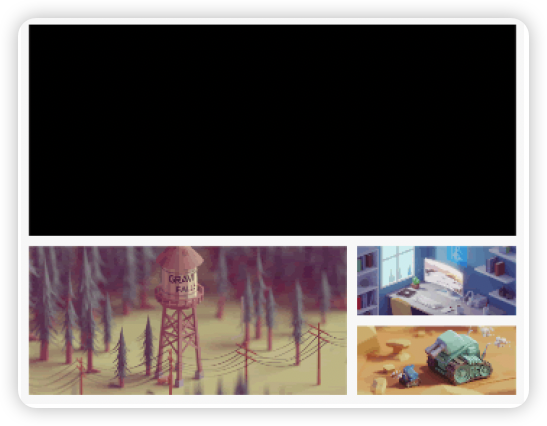
使用Row 或Column 结合Expanded实现下面示例
import 'package:flutter/material.dart';
import 'listData.dart';

void main() {
  runApp(MaterialApp(
    home: Scaffold(
      appBar: AppBar(
        title: const Text('你好Flutter'),
        backgroundColor: Colors.blueGrey[900],
      ),
      body: const MyApp(),
    ),
  ));
}

class MyApp extends StatelessWidget {
  const MyApp({Key? key}) : super(key: key);

  @override
  Widget build(BuildContext context) {
    return ListView(
      children: [
        Container(
          width: double.infinity,
          height: 200,
          color: Colors.black,
        ),
        Row(
          children: [
            Expanded(
              flex: 2,
              child: SizedBox(
                height: 180,
                child: Image.network(
                  'https://www.itying.com/images/flutter/1.png',
                  fit: BoxFit.cover,
                ),
              ),
            ),
            Expanded(
              flex: 1,
              child: Container(
                height: 180,
                margin: const EdgeInsets.fromLTRB(10, 0, 0, 0),
                child: ListView(
                  children: [
                    SizedBox(
                      height: 85,
                      child: Image.network(
                        'https://www.itying.com/images/flutter/2.png',
                        fit: BoxFit.cover,
                      ),
                    ),
                    const SizedBox(height: 10),
                    SizedBox(
                      height: 85,
                      child: Image.network(
                        'https://www.itying.com/images/flutter/3.png',
                        fit: BoxFit.cover,
                      ),
                    ),
                  ],
                ),
              ),
            ),
          ],
        )
      ],
    );
  }
}