
图片组件介绍
Flutter 中,我们可以通过Image 组件来加载并显示图片Image 的数据源可以是asset、文件、内存以及网络 。
- 这里主要介绍2个
- Image.asset 本地图片
- Image.network 远程图片
- Image组件的常用属性:
| 名称 | 类型 | 说明 |
|---|---|---|
| alignment | Alignment | 图片对齐方式 |
| color和colorBlendMode | 设置图片的背景颜色,通常和colorBlendMode配合一起使用,这样可以是图片颜色和背景色混合。上面的图片就是进行了颜色的混合,绿色背景和图片红色的混合 | |
| fit | BoxFit | fit属性用来控制图片的拉伸和挤压,这都是根据父容器来的。 BoxFit.fill:全图显示,图片会被拉伸,并充满父容器。BoxFit.contain:全图显示,显示原比例,可能会有空隙。BoxFit.cover:显示可能拉伸,可能裁切,充满(图片要充满整个容器,还不变形)。 BoxFit.fitWidth:宽度充满(横向充满),显示可能拉伸,可能裁切。 BoxFit.fitHeight :高度充满(竖向充满),显示可能拉伸,可能裁切。BoxFit.scaleDown:效果和contain差不多,但是此属性不允许显示超过源图片大小,可小不可大。 |
| repeat | 平铺 | ImageRepeat.repeat : 横向和纵向都进行重复,直到铺满整个画布。ImageRepeat.repeatX: 横向重复,纵向不重复。ImageRepeat.repeatY:纵向重复,横向不重复。 |
| width | 宽度 一般结合ClipOval才能看到效果 | |
| height | 高度 一般结合ClipOval才能看到效果 |
加载远程图片
import 'package:flutter/material.dart';

void  main() {
  runApp(
    MaterialApp(
      home: Scaffold(
        appBar: AppBar(
          title: const Text('你好Flutter'),
          backgroundColor: Colors.blueGrey[900],
        ),
        body: const MyApp(),
      ),
    )
  );
}

class MyApp extends StatelessWidget {
  const MyApp({super.key});

  @override
  Widget build(BuildContext context) {
    return Center(
      child: Container(
        width: 150,
        height: 150,
        decoration: const BoxDecoration(
          color: Colors.yellow,
        ),
        child: Image.network(
          'https://flutter.github.io/assets-for-api-docs/assets/widgets/owl-2.jpg',
          fit: BoxFit.cover,
        )
      ),
    );
  }
}
Container实现圆形图片
import 'package:flutter/material.dart';

void  main() {
  runApp(
    MaterialApp(
      home: Scaffold(
        appBar: AppBar(
          title: const Text('你好Flutter'),
          backgroundColor: Colors.blueGrey[900],
        ),
        body: const MyApp(),
      ),
    )
  );
}

class MyApp extends StatelessWidget {
  const MyApp({super.key});

  @override
  Widget build(BuildContext context) {
    return Center(
      child: Container(
        width: 150,
        height: 150,
        decoration: const BoxDecoration(
          color: Colors.yellow,
          borderRadius: BorderRadius.all(Radius.circular(75)),
          image: DecorationImage(
            image: NetworkImage('https://flutter.github.io/assets-for-api-docs/assets/widgets/owl-2.jpg'),
            fit: BoxFit.cover
          )
        ),
      ),
    );
  }
}
ClipOval实现圆形图片
import 'package:flutter/material.dart';

void  main() {
  runApp(
    MaterialApp(
      home: Scaffold(
        appBar: AppBar(
          title: const Text('你好Flutter'),
          backgroundColor: Colors.blueGrey[900],
        ),
        body: const MyApp(),
      ),
    )
  );
}

class MyApp extends StatelessWidget {
  const MyApp({super.key});

  @override
  Widget build(BuildContext context) {
    return Center(
      child: ClipOval(
        child: Image.network(
            'https://flutter.github.io/assets-for-api-docs/assets/widgets/owl-2.jpg',
            width: 100,
            height: 100,
            fit: BoxFit.cover,
          ),
        ),
      );
  }
}
CircleAvatar实现圆形图片
radius 元的半径
import 'package:flutter/material.dart';

void  main() {
  runApp(
    MaterialApp(
      home: Scaffold(
        appBar: AppBar(
          title: const Text('你好Flutter'),
          backgroundColor: Colors.blueGrey[900],
        ),
        body: const MyApp(),
      ),
    )
  );
}

class MyApp extends StatelessWidget {
  const MyApp({super.key});

  @override
  Widget build(BuildContext context) {
    return const Center(
      child: CircleAvatar(
        backgroundImage: NetworkImage('https://flutter.github.io/assets-for-api-docs/assets/widgets/owl-2.jpg'),
        radius: 30.0,
      ),);
  }
}
基本上,CircleAvatar 不提供设置边框的属性。但是,可以将其包裹在具有更大半径和不同背景颜色的 不同 CircleAvatar 中,以创建类似于边框的内容。
import 'package:flutter/material.dart';

void  main() {
  runApp(
    MaterialApp(
      home: Scaffold(
        appBar: AppBar(
          title: const Text('你好Flutter'),
          backgroundColor: Colors.blueGrey[900],
        ),
        body: const MyApp(),
      ),
    )
  );
}

class MyApp extends StatelessWidget {
  const MyApp({super.key});

  @override
  Widget build(BuildContext context) {
    return const Center(
      child: CircleAvatar(
        radius: 110,
        backgroundColor: Color(0xFF0000FF),
        child: CircleAvatar(
          radius: 100,
          backgroundImage: NetworkImage('https://flutter.github.io/assets-for-api-docs/assets/widgets/owl-2.jpg'),
        )
      ),
    );
  }
}
加载本地图片
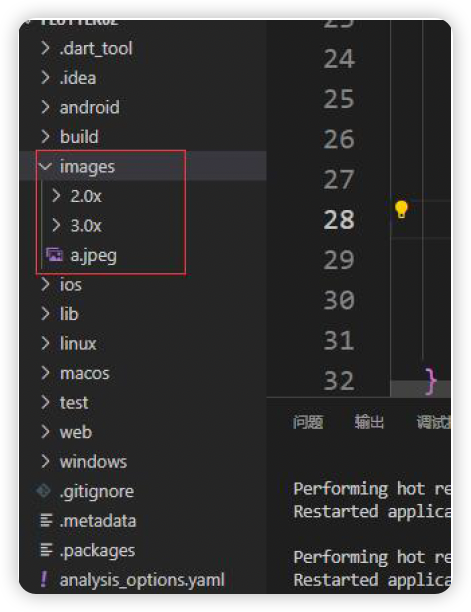
- 项目根目录新建images文件夹,images中新建2.x 3.x对应的文件
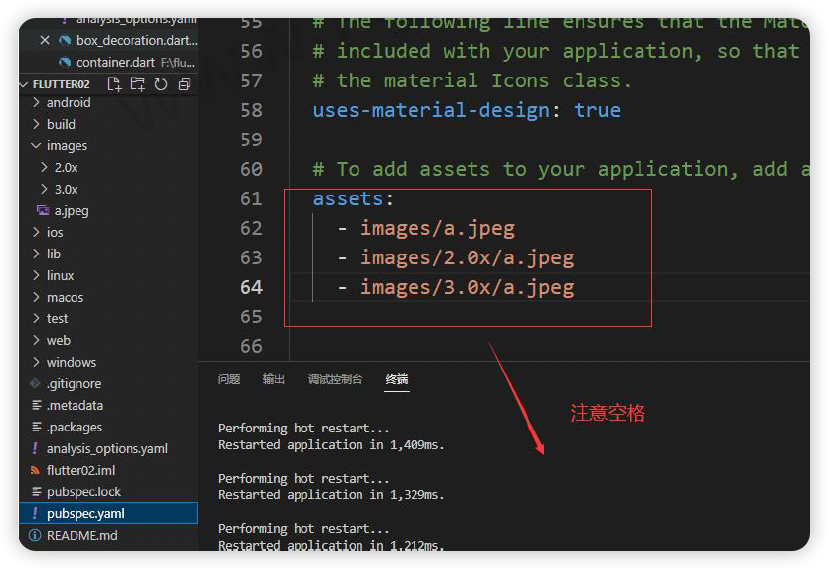
- 然后,打开pubspec.yaml 声明一下添加的图片文件, 注意: 空格
- 使用
  class MyApp extends StatelessWidget {
      const MyApp({Key? key}) : super(key: key);
      @override
      Widget build(BuildContext context) {
          return Center(
              child: ClipOval(
              child: Image.asset(
                  "images/a.jpeg",
                  width: 150.0,
                  height: 150.0,
                  fit: BoxFit.cover),
              ),
          );
      }
  }