
Flutter Stack组件
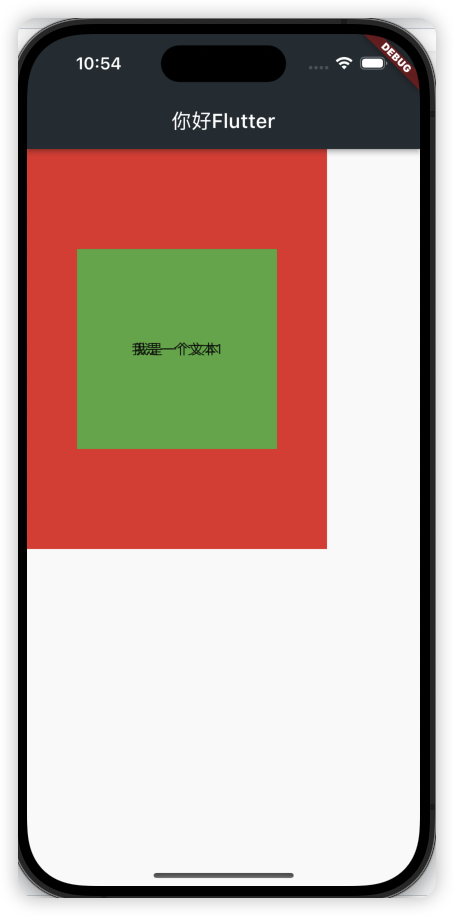
Stack表示堆的意思,我们可以用Stack或者Stack结合Align或者Stack结合 Positiond来实现页面的定位布局
| 属性 | 说明 |
|---|---|
| alignment | 配置所有子元素的显示位置 |
| children | 子组件 |
import 'package:flutter/material.dart';
import 'listData.dart';

void main() {
  runApp(MaterialApp(
    home: Scaffold(
      appBar: AppBar(
        title: const Text('你好Flutter'),
        backgroundColor: Colors.blueGrey[900],
      ),
      body: const MyApp(),
    ),
  ));
}

class MyApp extends StatelessWidget {
  const MyApp({Key? key}) : super(key: key);

  @override
  Widget build(BuildContext context) {
    return Stack(
      alignment: Alignment.center,
      children: [
        Container(
          width: 300,
          height: 400,
          color: Colors.red,
        ),
        Container(
          width: 200,
          height: 200,
          color: Colors.green,
        ),
        const Text('我是一个文本'),
        const Text('我是一个文本1')
      ],
      );
      // Container
  }
}
Flutter Stack Align
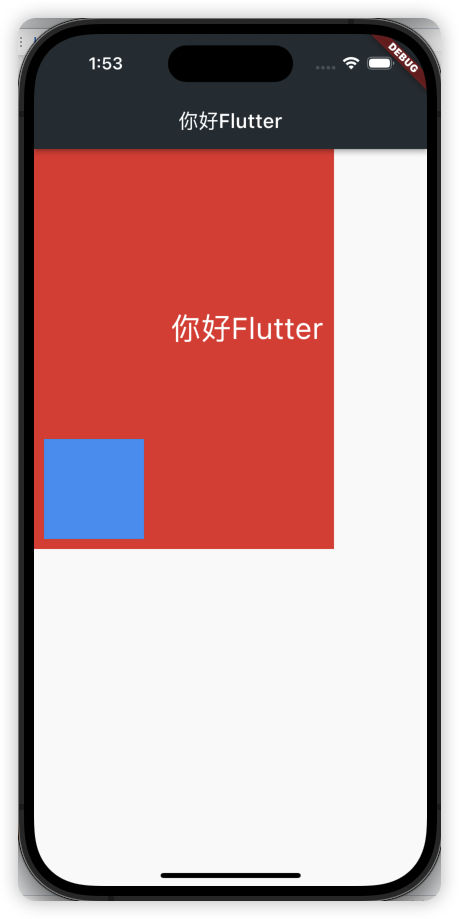
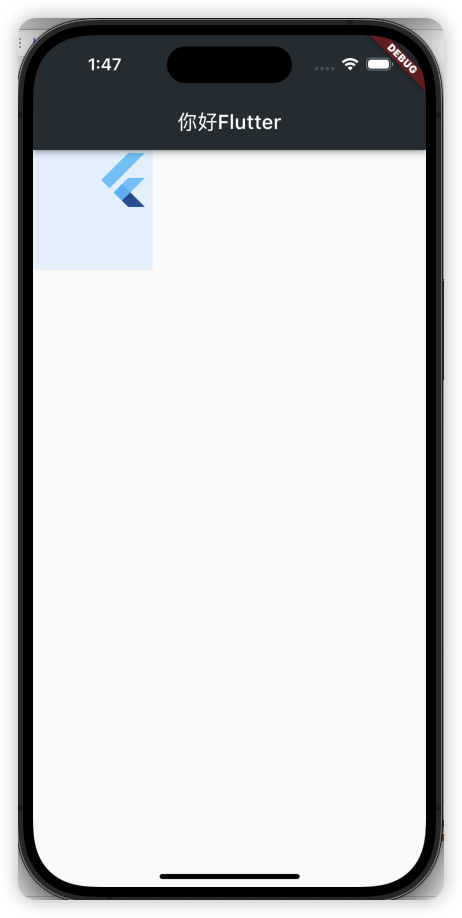
Align 组件可以调整子组件的位置 , Stack组件中结合Align组件也可以控制每个子元素的显示位置
| 属性 | 说明 |
|---|---|
| alignment | 配置所有子元素的显示位置 |
| children | 子组件 |
Align结合Container的使用
import 'package:flutter/material.dart';
import 'listData.dart';

void main() {
  runApp(MaterialApp(
    home: Scaffold(
      appBar: AppBar(
        title: const Text('你好Flutter'),
        backgroundColor: Colors.blueGrey[900],
      ),
      body: const MyApp(),
    ),
  ));
}

class MyApp extends StatelessWidget {
  const MyApp({Key? key}) : super(key: key);

  @override
  Widget build(BuildContext context) {
    return Container(
      width: 300,
      height: 400,
      color: Colors.red,
      child: Stack( // Stack组件 相对于父组件进行定位,如果没有父组件,相对于屏幕进行定位
        children: [
          Positioned(
            left: 10,
            bottom: 10,
            child: Container(
              width: 100,
              height: 100,
              color: Colors.blue,
            ),
          ),
          const Positioned(
            right: 10,
            bottom: 200,
            child: Text(
              '你好Flutter',
              style: TextStyle(
                fontSize: 30,
                color: Colors.white,
              ),
            )
          ),
        ],
      ),
    );
  }
}
Align结合Alignment 参数
import 'package:flutter/material.dart';
import 'listData.dart';

void main() {
  runApp(MaterialApp(
    home: Scaffold(
      appBar: AppBar(
        title: const Text('你好Flutter'),
        backgroundColor: Colors.blueGrey[900],
      ),
      body: const MyApp(),
    ),
  ));
}

class MyApp extends StatelessWidget {
  const MyApp({Key? key}) : super(key: key);

  @override
  Widget build(BuildContext context) {
    // 获取屏幕宽高
    // var width = MediaQuery.of(context).size.width;

    return Container(
      height: 120.0,
      width: 120.0,
      color: Colors.blue.shade50,
      child: const Align(
        alignment: Alignment.topRight,
        child: FlutterLogo(
          size: 60,
        ),
      ),
    );
  }
}
FlutterMediaQuery获取屏幕宽度和高度
final size =MediaQuery.of(context).size;
组件的build方法中可以通过,=MediaQuery.of(context).size;
Widget build(BuildContext context) {
    final size =MediaQuery.of(context).size;
    final width =size.width;
    final height =size.height;
}
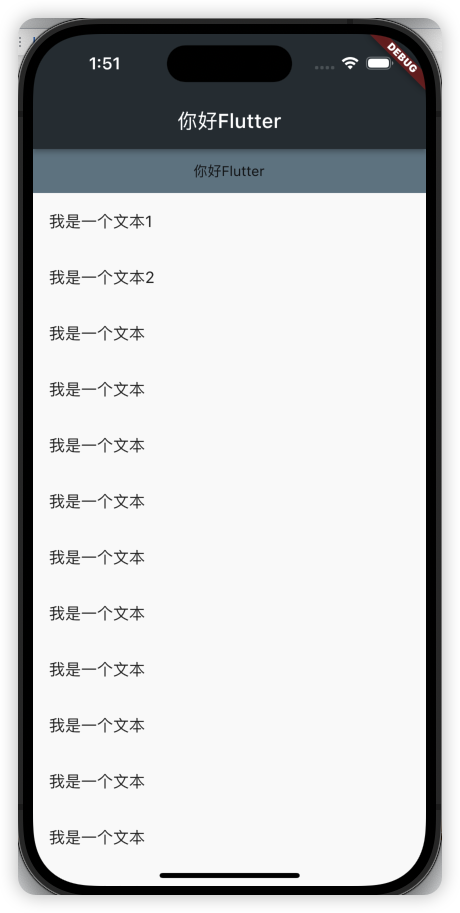
Flutter Stack Positioned固定导航案例
import 'package:flutter/material.dart';
import 'listData.dart';

void main() {
  runApp(MaterialApp(
    home: Scaffold(
      appBar: AppBar(
        title: const Text('你好Flutter'),
        backgroundColor: Colors.blueGrey[900],
      ),
      body: const MyApp(),
    ),
  ));
}

class MyApp extends StatelessWidget {
  const MyApp({Key? key}) : super(key: key);


  @override
  Widget build(BuildContext context) {
    // 获取屏幕宽高
    var width = MediaQuery.of(context).size.width;

    return Stack(
      children: [
        ListView(
          padding: const EdgeInsets.only(top: 44),
          children: const [
            ListTile(
              title: Text('我是一个文本1'),
            ),
            ListTile(
              title: Text('我是一个文本2'),
            ),
            ListTile(
              title: Text('我是一个文本'),
            ),
            ListTile(
              title: Text('我是一个文本'),
            ),
            ListTile(
              title: Text('我是一个文本'),
            ),
            ListTile(
              title: Text('我是一个文本'),
            ),
            ListTile(
              title: Text('我是一个文本'),
            ),
            ListTile(
              title: Text('我是一个文本'),
            ),
            ListTile(
              title: Text('我是一个文本'),
            ),
            ListTile(
              title: Text('我是一个文本'),
            ),
            ListTile(
              title: Text('我是一个文本'),
            ),
            ListTile(
              title: Text('我是一个文本'),
            ),ListTile(
              title: Text('我是一个文本'),
            ),
            ListTile(
              title: Text('我是一个文本'),
            ),
            ListTile(
              title: Text('我是一个文本'),
            ),
            ListTile(
              title: Text('我是一个文本'),
            ),
          ],
        ),
        Positioned(
          left: 0,
          top: 0,
          width: width,
          height: 44,
          child: Row(
          children: [
            Expanded(
              child: Container(
                alignment: Alignment.center,
                height: 44,
                color: Colors.blueGrey,
                child: const Text('你好Flutter'),
              ),
            )
          ],
        ))
      ],
    );
  }
}